Create a NEW Blog Post

Log in to your WordPress Administration Panel (Dashboard).

Your login address is one of these two addresses.  Use whichever one works on your website (Replace “yourwebsitename.com” with your Website address.)

  • https://www.yourwebsitename.com/wp-admin
  • https://www.yourwebsitename.com/website-login

Login with your WordPress Username and Password.  This is the UserName and Password you were given after your website was created.  If you don’t know your WordPress Username and/or Password contact us and we can help you retrieve it.

Once logged in you will see your WordPress Dashboard.  You will now use these options in the left Menu.

Click the ‘Posts‘ tab.
Click the ‘Add New‘ sub-tab.

Depending on what version of WordPress you have and what plug-ins are activated you may see your content differently.  Here are the two basic WordPress editors.

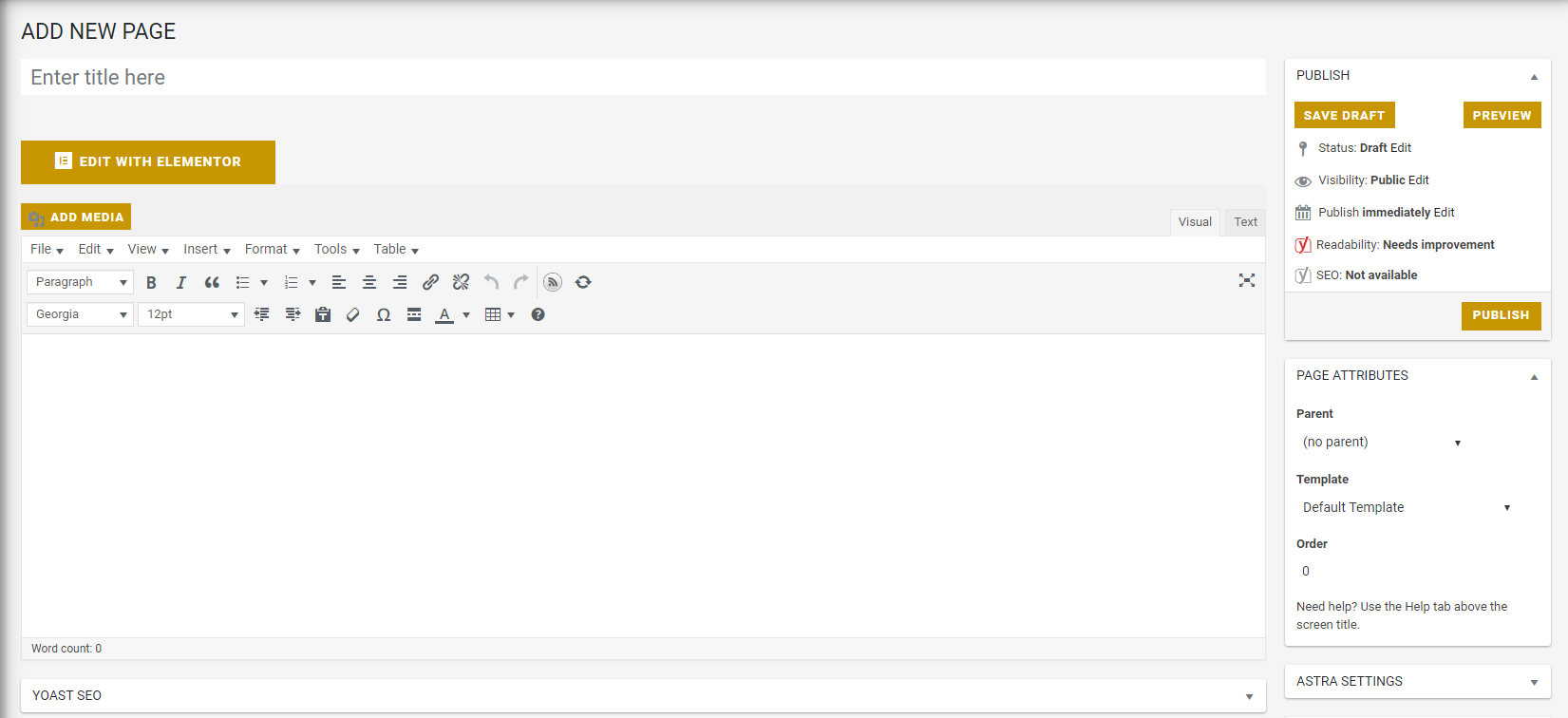
Classic Editor:  This is the editor that was standard with WordPress up until version 5.0.  It will become obsolete in the near future.
Block Editor (Gutenberg):  This is the editor that is standard with WordPress version 5.0 and higher.

This tutorial is written for the new Block Editor as the old one will become obsolete and be transitioned over to the new one.
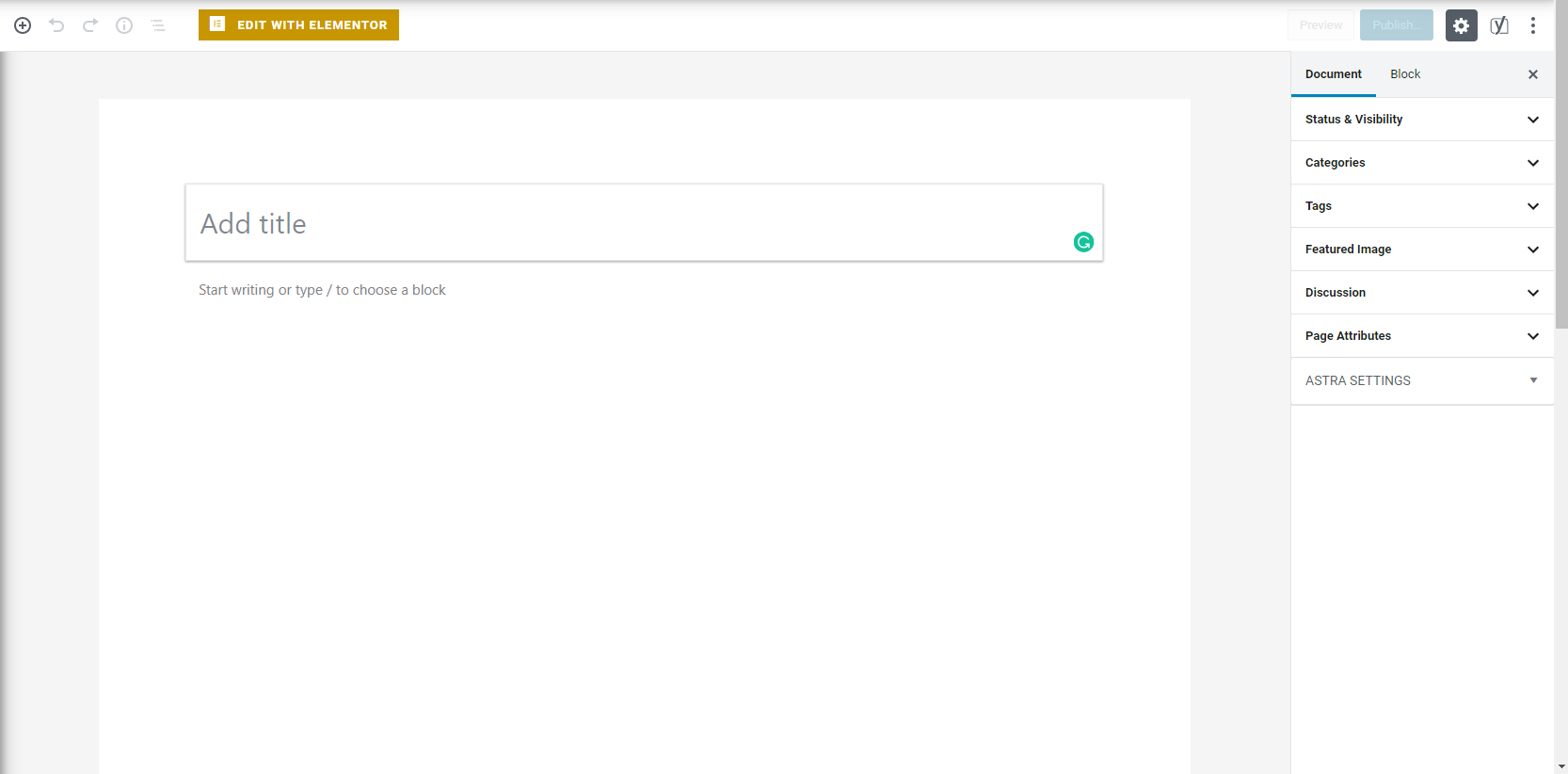
Block Editor (Gutenberg)

Classic Editor (Old)

Post Settings

In the “Add Title” field enter the Title of your Blog post.

On the right tab, you can edit your details.
Status & Visibility
Visibility: Public, Private or Password Protected
Author: Choose the Author of the Post
Permalink:  This is the name of the page of your website (e.g.  www.mywebsite.com/”permalink name”)
Categories:  Choose categories that you want to be associated with your blog post.
Tags:  Add any Tags you want to be associated with your blog post.
Featured Images: Add an Image you want to be associated with your blog post.
Excerpt:  Add a small excerpt that you want Search Engines to display for your blog post.
Discussion:  Choose whether you want people to be able to comment on your blog post.
Post Attributes:  Default Template.

When done click “Publish“

Post Content

Depending on what version of WordPress and what plug-ins are installed you may have your website setup to add your post content in different ways.  Before proceeding you will need to know how your website displays its content.

Elementor
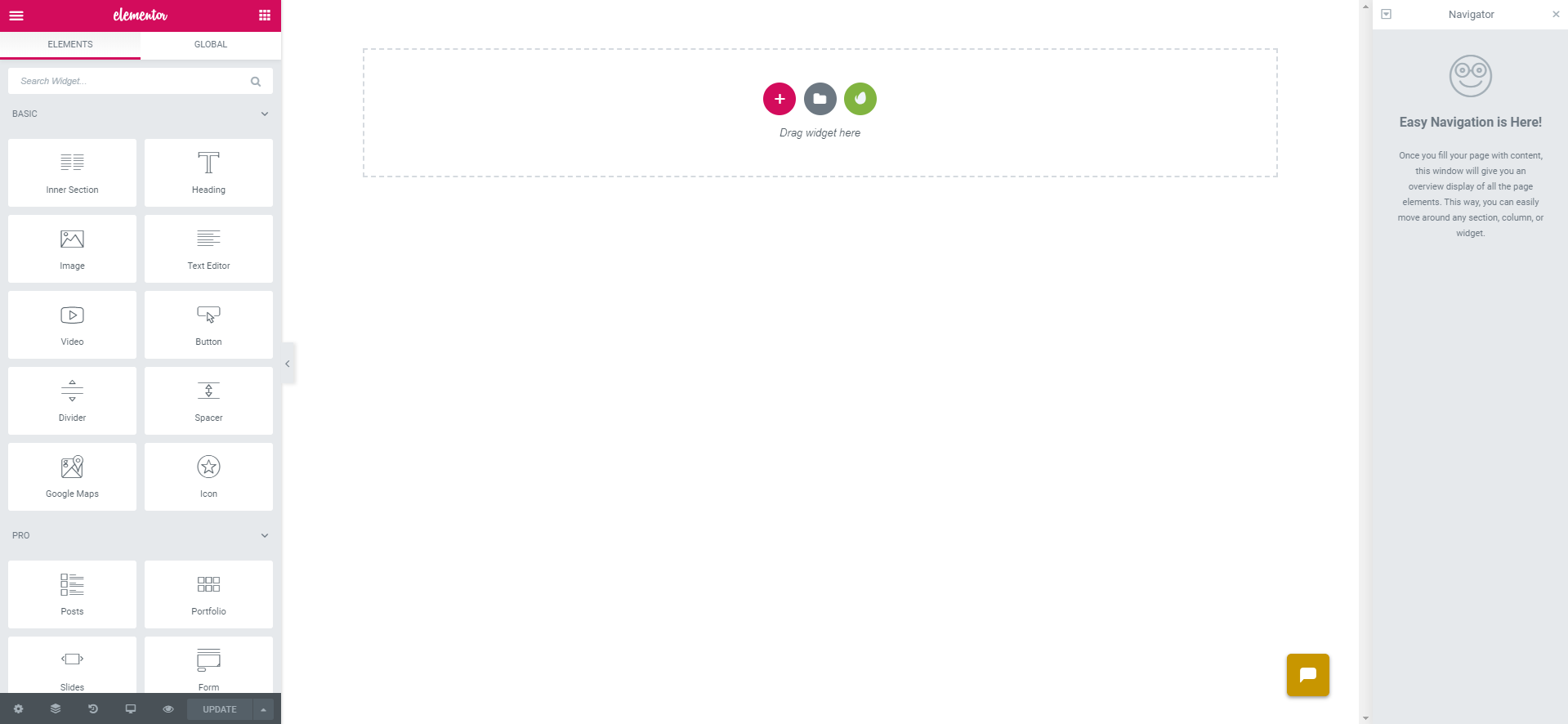
On the Top click on “Edit with Elementor”.  This will open up the Elementor Page builder where you can create your blog post content.

WordPress Block Editor (Gutenberg)

Elementor

WordPress Block Editor